
Shopify Flow Shipping Labels: How to Auto-Buy Labels Safely
Shopify Flow can now buy shipping labels automatically. Learn how the Purchase shipping label action works, which orders qualify, how to set it up, and the mistakes that waste postage.
Most Shopify stores that ship their own orders have the same morning routine: open the Orders page, select the unfulfilled orders, buy labels, print, pack. For a store doing a handful of orders a day that is fine. Once volume grows, the label step becomes a queue of repetitive clicks, and the orders that actually need a human (an awkward bundle, an oversized item, an international parcel) get the same attention as the easy ones.
On October 15, 2026, Shopify announced that Shopify Flow can now buy shipping labels automatically. You define which orders qualify, and Flow purchases a label for each matching order as it comes in, ready to print from the Shipping labels page. This guide explains how the new Purchase shipping label action works, how to build a safe workflow around it, where it stops working, and the setup mistakes that turn automation into wasted postage.
What the Purchase shipping label action does
Shopify Flow is Shopify's built-in automation app. A workflow has a trigger (an event that starts it), optional conditions (checks that decide whether to continue), and actions (what Flow does). The new action, documented in the Purchase shipping label reference, buys a real shipping label through your Shopify admin using the carrier, service, package, and weight you configure.
Three details shape everything else:
- It works on fulfillment orders, not orders. One run buys one label for one fulfillment order. An order shipped from two locations has two fulfillment orders, so it needs two labels.
- The trigger supplies the fulfillment order. The action carries a hidden
fulfillmentOrder.idfield that the trigger fills in, and you can't change it. That means the workflow must start from a trigger that contains a fulfillment order object. - Every run is a purchase. There is no preview mode. If a condition is too loose, Flow buys labels you didn't want, and you get the money back only by voiding them.
The four settings you control
The action exposes four fields:
- Shipping service: pick a specific carrier and service every time (for example, a particular USPS service), or let Flow use the cheapest available carrier and service for that shipment.
- Saved package: products use their assigned package by default; you can choose another saved package, and if nothing is set Shopify uses the recommended package.
- Total weight: use the combined assigned weights of the line items, or a single custom weight on every run.
- Send shipping confirmation to buyer: same day by default, or a date relative to when the action runs, such as one day later.
The changelog also mentions choosing a ship date. The action reference lists the four fields above, so check what your Flow editor shows before you rely on a future ship date.
Which triggers work
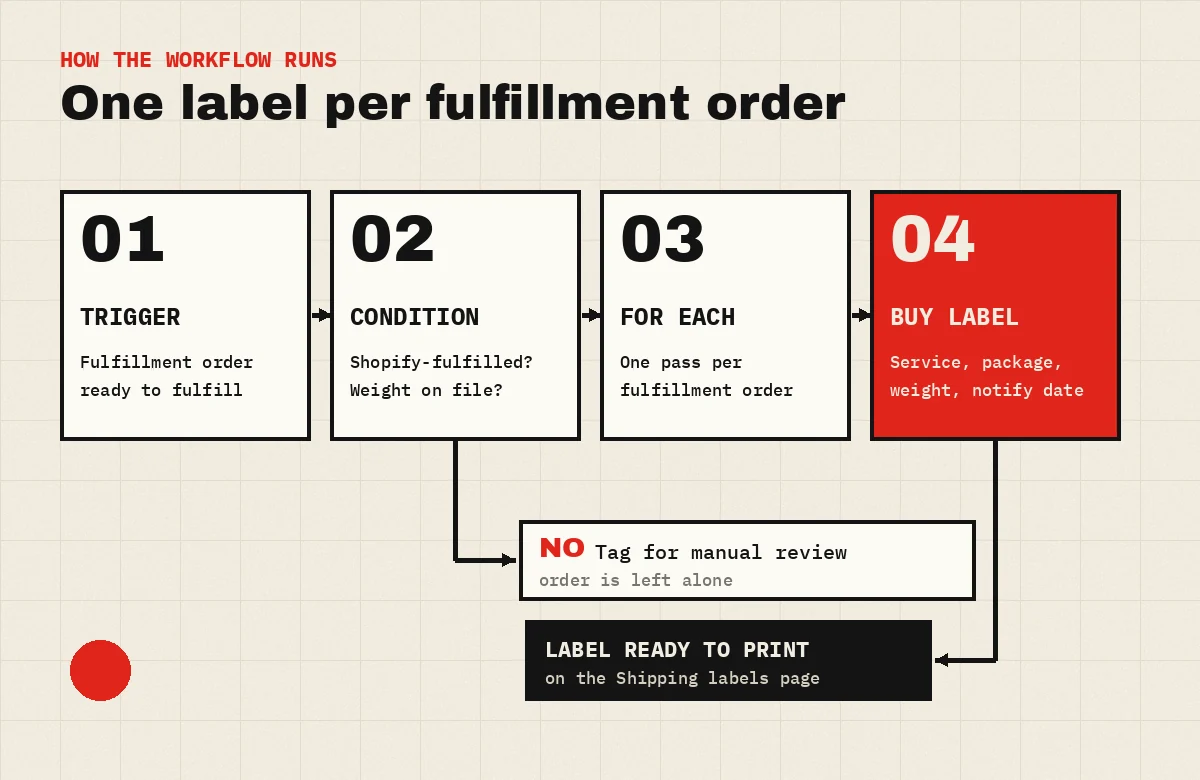
Shopify lists the fulfillment-order triggers that can feed the action, including Fulfillment order ready to fulfill, Fulfillment order hold released, Fulfillment order moved, and Fulfillment order rescheduled. For most stores, Fulfillment order ready to fulfill is the natural starting point: it fires when a fulfillment order can actually be shipped. Hold released is useful if you hold orders for fraud review or pre-orders and only want labels once the hold lifts.
If your workflow handles a list of fulfillments rather than a single one, Shopify says you must wrap the action in a For each loop so it runs once per fulfillment order.
Who can use it (and who can't)
Before building anything, confirm that your orders are eligible. The action inherits all of Shopify's normal label rules and adds one of its own.
Your fulfillment location must support Shopify shipping labels
Shopify labels are available only from eligible fulfillment locations. According to Shopify's requirements for buying shipping labels, carriers are offered for locations in the United States, Canada, Australia, the United Kingdom, France, Germany, Italy, Spain, the Netherlands, and Poland, and the exact carriers differ by country. Some carriers also require your store address to be in the same country as the location. If you ship from somewhere else, you will still need a third-party shipping app.
Third-party fulfillment services are skipped
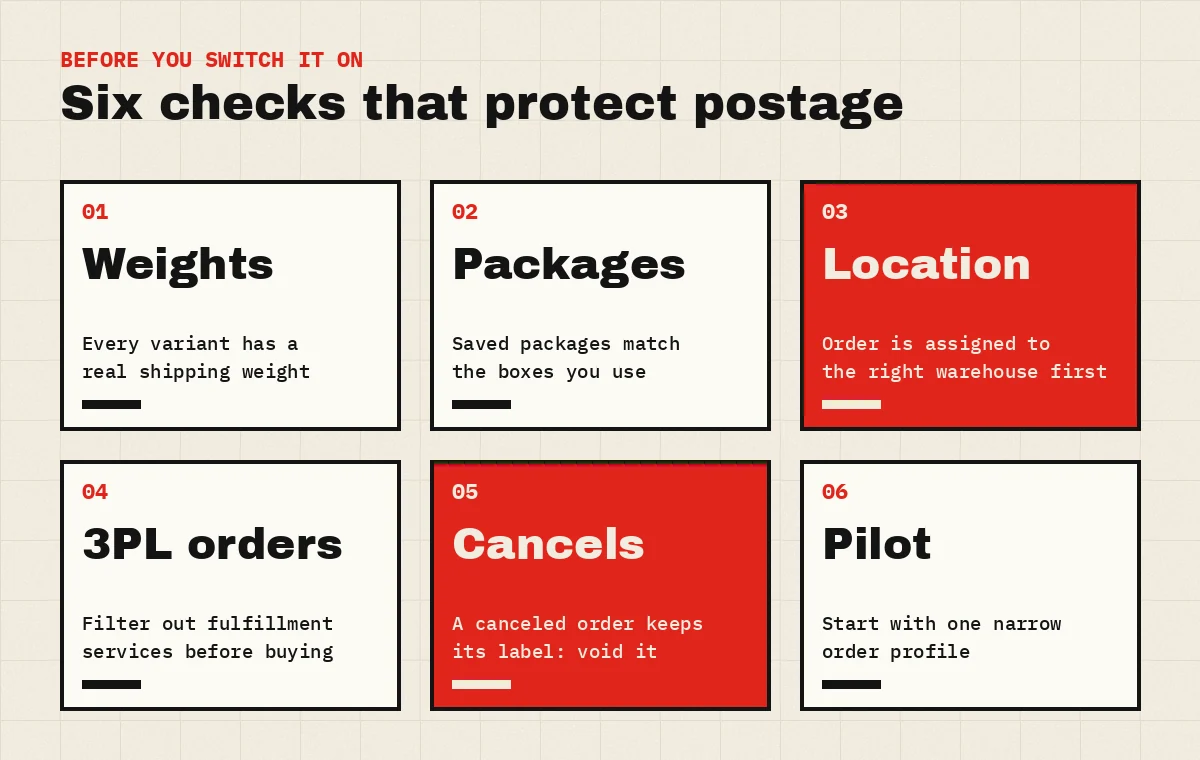
The action supports fulfillment orders that are fulfilled directly through Shopify. If a fulfillment order is assigned to a third-party fulfillment service, such as a 3PL app location, the action won't run even when a valid fulfillment order exists. Stores that mix in-house and outsourced fulfillment should add a condition that checks the fulfillment order's assigned location or fulfillment service before the purchase step. That condition also makes the workflow's intent obvious to the next person who edits it.
Flow itself
Shopify Flow is a free Shopify app, but free automation does not mean free postage: every label the workflow buys is billed like a label you bought by hand.
How to set up automatic shipping labels in Shopify Flow
Shopify ships ready-made templates for this action, and starting from one is usually better than an empty workflow. Whichever way you start, the structure below keeps the first version narrow and easy to reason about.
1. Pick the trigger
Use Fulfillment order ready to fulfill unless you have a specific reason not to. Each run then handles exactly one fulfillment order, which keeps the logic simple.
2. Write conditions that describe one order profile
The changelog gives examples of what you can filter on: orders with a specific tag, orders containing certain products, single-item orders, or any combination of order attributes. A good first workflow targets one well-understood profile, for example:
- the fulfillment order is assigned to your main in-house warehouse (not a 3PL);
- the destination country is your home country;
- the order contains a single line item, or only products that ship in one standard box;
- the order does not carry a tag such as
manual-shipthat your team uses for exceptions.
Everything else should fall through to the false branch. A useful pattern is to add an order tag there (for example label-review) so packers can filter those orders in the admin instead of wondering why no label appeared.
3. Configure the action
Decide between a fixed service and the cheapest available. A fixed service gives predictable delivery promises; "cheapest available" can save money but may change the carrier from one order to the next, which matters if you have scheduled carrier pickups. Then confirm the package and weight settings match reality (more on this below), and set the shipping confirmation timing so the customer email goes out when the parcel actually leaves, not when the label was bought.
4. Pilot before widening
Turn the workflow on for a small, predictable slice of orders and review every purchased label for the first days: carrier, service, cost, and package. Compare against what your team would have chosen by hand. Only once the narrow version is boring should you add a second workflow for the next order profile.
The mistakes that waste postage
Automation removes the moment where a person glances at the label before paying for it. These are the gaps that moment used to cover.
Inaccurate weights and packages
Carriers price labels on origin, destination, package dimensions, and weight. Shopify warns that if package details aren't accurate, you can be charged a price adjustment. When a person buys one label with a wrong weight, it's a one-off; when a workflow does it, the same error repeats on every matching order. Audit product weights and saved packages before switching anything on, and avoid a single custom weight unless every order in the profile genuinely ships at that weight.
The wrong origin location
A label is bought from the location the fulfillment order is assigned to. If Shopify's order routing sent the order to the wrong warehouse, the workflow buys a perfectly valid label from the wrong place, and the cheapest-available service is calculated from the wrong origin. Label automation makes the routing decision upstream more important, not less. We cover how routing and shipping profiles interact in Shopify shipping profiles vs order routing, and multi-site setups in how to manage multiple warehouses in Shopify.
Cancellations after the label is bought
Canceling an order doesn't void a label that a workflow has already purchased. If you buy labels seconds after checkout, any later cancellation leaves a paid, unused label behind. You can void a label from the order page or the Shipping labels page to receive the cost as account credit, but only while it meets Shopify's voiding requirements: for example, no older than 30 days, no tracking events, and not bought with USPS First Class Mail. Stores with a meaningful cancellation rate can reduce this risk by using a hold (for fraud checks or a short edit window) and triggering on hold released instead.
Split shipments and edge cases in the first version
Orders split across locations, bundles, pre-orders, and international parcels that need customs information are where defaults break. Keep them out of the first workflow. If you split orders deliberately, our guide to Shopify split shipping explains how fulfillment orders are created, which tells you how many labels each order will need.
Assuming the action prevents duplicates
Shopify's documentation doesn't describe how the action behaves if a label already exists for a fulfillment order, or how a failed purchase is reported. Don't assume it protects you. Keep conditions mutually exclusive across workflows so one fulfillment order can never match two label workflows, and check the workflow's run history regularly during the pilot.
Getting the label into an app, ERP, or WMS
The Purchase shipping label action doesn't pass the label or the label file to later steps in the workflow, so you can't, for example, email the PDF from the same workflow. If you print from a warehouse system, an ERP, or a custom app rather than the Shopify admin, retrieve the label through the GraphQL Admin API instead. In API version 2026-07 and later, the shippingLabel field on a fulfillment returns the purchased label, and its shippingDocuments field includes the URL of the label file (see the ShippingLabel object).
A common pattern is to let Flow buy the label and have your integration react to the fulfillment, fetch shippingLabel, and send the document to the right printer or packing station. Treat that integration like any other webhook consumer: verify signatures, expect retries, and make processing idempotent so a repeated event doesn't print twice. Our guide to Shopify webhooks, HMAC verification, retries, and idempotency covers those patterns, and Shopify ERP integration covers the wider order sync.
Where label automation fits in your fulfillment pipeline
It helps to think of fulfillment as a chain of decisions, each of which has to be right before the next one is useful:
- Which location ships it? Order routing assigns each fulfillment order to a location.
- Is it ready? Holds for fraud, pre-orders, or edits are released.
- How does it ship? The label workflow picks the carrier, service, package, and weight.
- Who gets the paperwork? The label reaches a printer, a packing station, or an external system.
The new Flow action automates step three. It assumes step one is already right. For stores with several warehouses, postcode or region rules, or products that must ship from specific sites, that assignment is where most errors start. Shopify's own order routing handles many cases; when you need more control over which location receives which orders, CodeSapient's ShipAssign app can automate those location assignments with rules before Flow buys any label. Getting the origin right first means the "cheapest available" service is calculated from the warehouse that will really pack the parcel.
If your logic doesn't fit Flow conditions at all (for example, package selection that depends on product dimensions, or carrier choice driven by your own contracts), that's usually the point to consider a custom app built on the Admin API and Shopify Functions.
Frequently asked questions
Can Shopify automatically buy shipping labels?
Yes. Since October 15, 2026, Shopify Flow's Purchase shipping label action buys a Shopify shipping label for each fulfillment order that reaches it, based on the carrier, service, package, and weight you configure. Labels appear on the Shipping labels page ready to print.
Does it print the label too?
No. Flow buys the label; you print it from the Shipping labels page or retrieve it through the GraphQL Admin API if another system does the printing.
Does it work with my 3PL?
No. If a fulfillment order is assigned to a third-party fulfillment service, the action won't run. Your 3PL's own label process still applies to those orders.
What happens if an order is canceled after the label is bought?
The label isn't voided automatically. Void it from the order page or the Shipping labels page while it still meets Shopify's voiding requirements to receive the cost back as account credit.
Should I use the cheapest available service?
It depends on your promises to customers. Cheapest available optimizes cost per label but may switch carriers between orders. If you advertise a delivery time or rely on a daily pickup from one carrier, a fixed service is more predictable.
Start narrow, then expand
Automatic label buying is one of the more useful Shopify Flow additions this year because it removes a repetitive, high-volume step. It also spends money without a person looking first. Clean product data, correct location assignment, explicit exclusions for 3PL and edge-case orders, and a narrow pilot are what make it safe.
If you'd like help designing the routing and label workflow around your warehouses, or need a custom integration that pulls labels into your WMS or ERP, talk to CodeSapient about custom Shopify app development and automation. For location assignment rules specifically, you can explore ShipAssign on the Shopify App Store.