
How to Manage Multiple Warehouses in Shopify (Multi-Location Guide)
Learn how to manage multiple warehouses in Shopify: locations, inventory activation, shipping profiles, order routing, and the mistakes that cause wrong fulfills.
Growing past a single warehouse is a milestone—and a source of quiet operational debt. Inventory shows up in the wrong place, retail stock gets drained by online orders, new SKUs never activate at the second site, and checkout rates look “broken” even when the warehouse itself is fine.
This guide explains how to manage multiple warehouses in Shopify using native locations, inventory activation, shipping profiles, and order routing. It is written for ops and ecommerce leads who need a practical setup sequence—not a glossary of every Admin toggle.
What “multiple warehouses” means in Shopify
In Shopify, a warehouse is usually modeled as a location: a place that holds inventory and (optionally) fulfills online orders. Locations can be your own warehouses, retail stores, 3PL sites, or fulfillment apps that act as locations. Each location tracks its own quantities; inventory is not pooled across sites.
When you have more than one active location that can fulfill online, Shopify uses your order routing configuration plus available inventory to decide which location fulfills each order. Separately, shipping profiles control which products share which rates and which location groups may ship them. Mixing those layers is the most common multi-warehouse failure mode.
For a deeper comparison of profiles versus routing, see our companion piece on Shopify shipping profiles vs order routing. This article focuses on the warehouse ops path: standing up sites, stocking them, and avoiding the mistakes that make multi-location feel random.
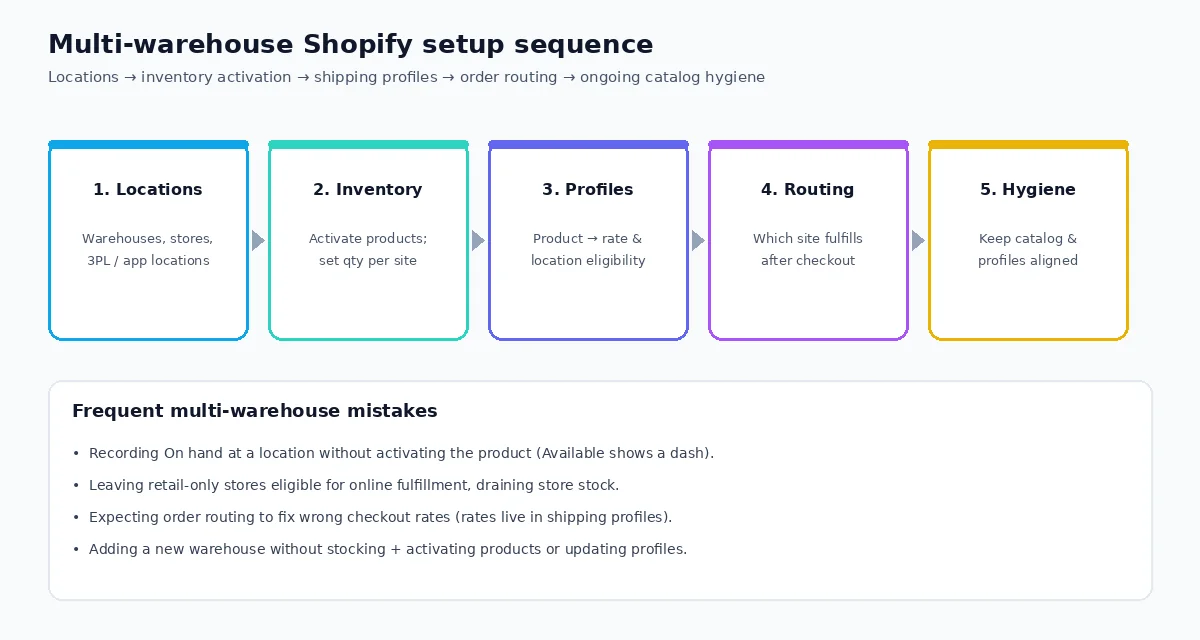
Step 1 — Create and classify fulfillment locations
Start in Settings → Locations. Add a location for every place that should hold sellable inventory or fulfill orders: primary warehouse, overflow warehouse, retail stores, and any 3PL or fulfillment app that Shopify treats as a location.
Decide which locations fulfill online
Not every location should receive online orders. Retail-only stores and pure storage sites often should have “Use inventory at this location to fulfill online orders” turned off. That keeps store stock out of online Available quantity and prevents order routing from assigning web orders to the wrong site.
Shopify’s fulfillment docs also note that your default location affects some shipping-rate fallbacks when shipping settings are incomplete. Carrier label rates in Admin still calculate from the fulfillment location for the order—not necessarily the default—so get both right.
Apps and multi-managed inventory
You can stock the same product at your own locations and at fulfillment apps (dropship, POD, 3PL) at the same time. Each maintains its own count; routing (and profile eligibility) decide which origin is used. As of early 2026, Shopify has been migrating older fulfillment services toward multi-location inventory management—worth verifying if you rely on a legacy fulfillment service connector.
Step 2 — Activate products and set inventory per warehouse
Creating a product typically assigns it to all locations at quantity 0. A new warehouse you add later does not automatically receive stock or activation for existing products. You must activate products at that location and set quantities (product page → Inventory → Edit locations, bulk editor, inventory CSV, or transfers).
Critical gotcha: Recording On hand at a location without activating the product leaves Available as a dash. The units sit in Admin but are not sellable or fulfillable from that site. Activate first, then treat quantity as meaningful.
Practical patterns:
- Stock high-velocity SKUs at every online-fulfilling warehouse.
- Keep specialty or oversized items at the warehouse equipped to ship them.
- Reserve retail inventory by deactivating online fulfillment at store locations, or by keeping those products inactive for online there.
- Use transfers when moving stock between your own locations so history stays clean.
Step 3 — Align shipping profiles with warehouse eligibility
Order routing only chooses among locations that are eligible for the items. Eligibility for rates and location groups lives in shipping (delivery) profiles. If certain SKUs may only ship from Warehouse B, that constraint belongs in the profile’s location groups—not in a hope that routing will “figure it out.”
Common warehouse-driven profile use cases:
- Oversized or hazmat goods that only one warehouse can ship.
- Vendor/dropship catalogs that must not share the general profile’s rates.
- Regional catalogs with different origin groups and zones.
When catalog velocity is high—imports, POD apps, multi-vendor feeds—products drift onto the general profile. That is a catalog-ops problem. ShipAssign (by CodeSapient) automates assigning products and variants to shipping profiles from rules on attributes such as tags, vendor, product type, and weight. It does not route orders by ZIP/postcode to warehouses; that remains native order routing or a routing-focused Function/app.
Step 4 — Configure Shopify multi-location order routing
With two or more active locations, configure Settings → Shipping and delivery → Order routing. Shopify’s default strategy typically applies rules in this order:
- Minimize split fulfillments — prefer locations that can ship the whole order (or the fewest packages).
- Stay within the destination market — keep fulfillment inside the customer’s market when possible.
- Ship from the closest location — straight-line distance as a tie-breaker; Shopify recommends applying proximity last.
You can also rank location groups (for example, warehouses before retail) and use location metafields (capacity, speed) for prioritization. For logic beyond native rules, developers can use Shopify’s Order Routing Location Rule Function API—covered further in our guide to custom Shopify app development with Shopify Functions.
Routing does not set shipping prices. If customers see the wrong rate, fix profiles first.
Reducing fulfillment cost without guessing
Multi-warehouse cost control is mostly about fewer unnecessary splits, shorter outbound legs, and correct origin eligibility:
- Keep enough overlapping inventory at regional warehouses so “minimize splits” can win.
- Turn off online fulfillment for locations that should not absorb web demand.
- Put proximity after consolidation rules so you do not optimize distance into more packages.
- Keep oversized SKUs on profiles tied to the warehouse that can ship them economically.
- Reconcile inventory regularly—especially when 3PL/app locations and your warehouses stock the same SKUs.
When native rules are not enough (hard capacity caps, complex product-family preferences), evaluate custom Functions or a purpose-built routing app. CodeSapient builds that class of work under Shopify development services.
Setup checklist (ops-ready)
- List every physical and app location; mark which fulfill online.
- Confirm default location and carrier coverage expectations.
- Activate products at each warehouse that should sell/fulfill them; set real quantities.
- Verify online Available excludes retail-only sites you deactivated for web.
- Map product groups that need distinct rates or origins → shipping profiles.
- With 2+ online locations, review order routing rule order and ranked groups.
- Test carts: multi-item orders, low-stock splits, and a SKU that should only ship from one warehouse.
- Define who owns ongoing inventory accuracy and profile membership as the catalog changes.
When you need an app vs native Shopify
- Stay native for standard multi-warehouse inventory, default routing, and a modest number of shipping profiles.
- Add profile automation (for example ShipAssign) when catalog churn keeps products on the wrong delivery profiles.
- Add routing customization (Functions or routing apps) when address/market/capacity logic exceeds Admin rules.
- Add WMS/3PL deep integration when pick/pack, ASN, or multi-channel allocation lives outside Shopify’s inventory model.
A worked example: two warehouses and one retail store
Imagine a brand with a West Coast warehouse (Los Angeles), an East Coast warehouse (New Jersey), and a flagship retail store in Chicago.
- Los Angeles and New Jersey: online fulfillment on; both stock core SKUs.
- Chicago retail: online fulfillment off so walk-in inventory is not drained by web orders. POS still sells from Chicago stock.
- Oversized furniture SKUs: only active and profile-eligible at New Jersey.
- Order routing: minimize splits → stay in market → closest location; warehouses ranked above any other online-capable sites.
What this prevents: Chicago store stock disappearing overnight, furniture shipping from a site that cannot handle freight, and East Coast customers pulling West Coast inventory when New Jersey could fulfill the full cart. What still requires catalog discipline: every new furniture SKU must land on the furniture shipping profile and stay active only at New Jersey—otherwise routing never sees the constraint.
Governance: who owns what after go-live
Multi-warehouse setups fail quietly when ownership is unclear. Assign explicit owners:
- Inventory accuracy — cycle counts, 3PL sync exceptions, transfer receipts.
- Location policy — which sites fulfill online; seasonal pop-ups.
- Shipping profiles — product eligibility and rate cards; automation rules if you use them.
- Order routing — rule order, ranked groups, metafields for capacity.
Put a monthly review on the calendar: sample ten multi-item orders, confirm fulfill-from locations match intent, and spot-check five new products for profile membership and warehouse activation. That review costs less than another “wrong warehouse” week.
FAQ
How many locations can I use?
Shopify supports many locations (plan limits apply for the maximum count). Operationally, the limit that matters is how cleanly you can activate inventory, maintain profiles, and reason about routing—not the theoretical ceiling.
Why did an order go to the “wrong” warehouse?
Check inventory at each online-eligible location, whether the product is active there, profile location-group eligibility, and your routing rule order. Splits happen when no single location can fulfill the full cart.
Does ShipAssign pick the warehouse by postcode?
No. ShipAssign automates shipping-profile assignment from product/variant rules. Warehouse selection for a given order is Shopify order routing (or a routing-focused custom solution).
Conclusion
To manage multiple warehouses in Shopify, treat locations, inventory activation, shipping profiles, and order routing as a sequence—not interchangeable settings. Stock and activate deliberately, restrict online fulfillment where retail stock must stay local, keep products on the right profiles, then tune routing for splits, markets, and proximity.
If profile membership is the recurring leak as your catalog grows, try ShipAssign on the Shopify App Store or read more on ShipAssign at CodeSapient. If you need custom routing, 3PL integration, or multi-location Shopify development, contact CodeSapient.