
Shopify Split Shipping: Why Orders Split and How to Keep Them Together
Why one Shopify order turns into several shipments, what customers pay when it splits, and the routing rules, profile settings and fulfillment constraints that keep orders together.
A customer orders a jacket and a scarf, pays once, and then receives two tracking emails and two boxes on different days. Sometimes that is exactly the right call. Often it is an accident: the store's locations, shipping profiles, and routing rules quietly forced the split, and the merchant paid for an extra label without meaning to.
This guide explains how Shopify split shipping actually works, why a single order ends up as several shipments, what the customer is charged when that happens, and the specific settings and developer tools you can use to keep orders together when it matters.
What split shipping means in Shopify
Shopify uses the term in two related places, and it helps to keep them apart.
- Split shipping at checkout. When a cart can't ship as one package, checkout shows it as multiple shipments, each with its own delivery options. According to Shopify's split shipping documentation, this happens when the cart contains preorders, subscriptions, products shipping from different locations, products from different shipping profiles, or Buy with Prime products.
- Split fulfillment after the order. Once the order exists, Shopify creates one or more fulfillment orders, each assigned to a location. Order routing decides those assignments, and staff or apps can later move, split, or merge them.
The first is what your customer sees and pays for. The second is what your warehouse team actually packs. Fixing split shipments usually means working on both.
Why a Shopify order splits into multiple shipments
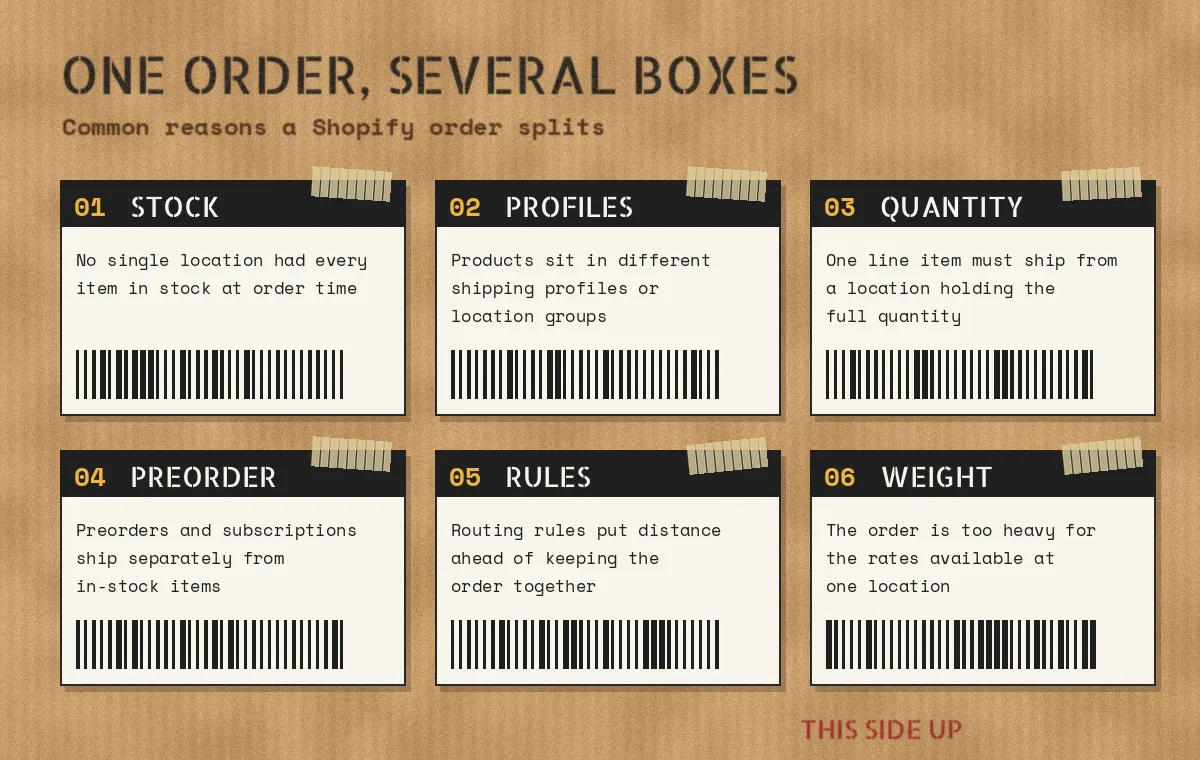
1. No single location has every item in stock
This is the most common cause. If the jacket is only in your east coast warehouse and the scarf is only in your retail store, there is no location that can ship both, so the order splits. Shopify evaluates inventory at the moment the order is placed, not later, so a restock an hour afterwards doesn't change the original assignment.
2. Products live in different shipping profiles or location groups
Shipping profiles decide which locations can ship a product and which rates apply. Products in separate profiles are treated as separate shipments at checkout. Within one profile, locations are organised into location groups, and that grouping also changes how rates are charged when an order ships from more than one place. If you want a refresher on how these two systems interact, see our guide to Shopify shipping profiles vs order routing.
3. A line item's full quantity isn't at one location
Shopify's documentation calls out a limitation that surprises many merchants: a single line item can't be split across locations at checkout. If a customer wants five of one shirt and you have two in Location A and four in Location B, checkout split shipping doesn't help, because all five must come from the same location.
4. Preorders and subscriptions
Items that ship later are separated from items that ship now. That is deliberate, and in most cases it is what the customer expects.
5. Your routing rules favour distance over consolidation
If you have removed the Minimize split fulfillments rule or placed Ship from closest location above it, Shopify will happily send each item from the nearest location that stocks it, even if that means two boxes.
6. The order is too heavy for one location's rates
Shopify's order routing troubleshooting notes mention that an order can split when it is too heavy for the shipping options available from a single location. Weight-based rate tables with a low maximum are a typical culprit.
What the customer pays when an order splits
This is where split shipping becomes a margin and conversion problem, not just an operations one. Shopify's own example uses two shirts stocked at two different locations, with a $10 standard rate and a $20 express rate:
- Same location group: the customer pays a single flat rate, $10 for standard or $20 for express, even though two parcels ship.
- Different location groups or different profiles: rates are added together, so standard becomes $20 and express $40. Checkout also offers More shipping options, so the customer can mix methods per shipment.
Stores that have upgraded to shipping options by market behave a little differently: flat and order-amount rates in the same shipping option are combined, the customer pays the highest matching rate once, and the other shipments are labelled Included. Rates are still added together when the customer picks different options per shipment, when rates come from a shipping app, or when the order mixes preorders with items that ship now. We cover that model in more detail in Shopify shipping options by market.
The practical takeaway: a store whose locations are scattered across several location groups can unintentionally double the shipping price a customer sees for an ordinary two-item cart. That is worth checking before you blame cart abandonment on anything else.
Changing the fulfillment location after checkout doesn't change what the customer already paid for shipping. If the new location costs more to ship from, that difference comes out of your margin.
How Shopify order routing decides where items ship from
When an order comes in and you have two or more active fulfillment locations, Shopify order routing applies a list of rules from top to bottom, each one narrowing the result of the previous rule. The default strategy is:
- Minimize split fulfillments. Locations that can ship everything are prioritised. If none can, Shopify picks the combination that produces the fewest packages.
- Stay within the destination market. Locations in the same market as the shipping address win.
- Ship from closest location. A straight-line distance tie-breaker, best placed last.
You can add Use ranked locations (for example, warehouses above retail stores) and Use location metafields (a boolean or numeric value such as a capacity flag). Shopify Plus stores can also use custom location rules provided by apps built on the order routing Function APIs.
Two details in Shopify's troubleshooting guide explain a lot of "why did this split?" tickets:
- A location that doesn't have Fulfill online orders from this location turned on is excluded from routing entirely.
- A location must belong to an active shipping zone covering the destination in the relevant shipping profile, even if that zone has no rates. Otherwise it can't be chosen, which can leave only split combinations available.
How to reduce split shipments in Shopify
Fix the setup before checkout
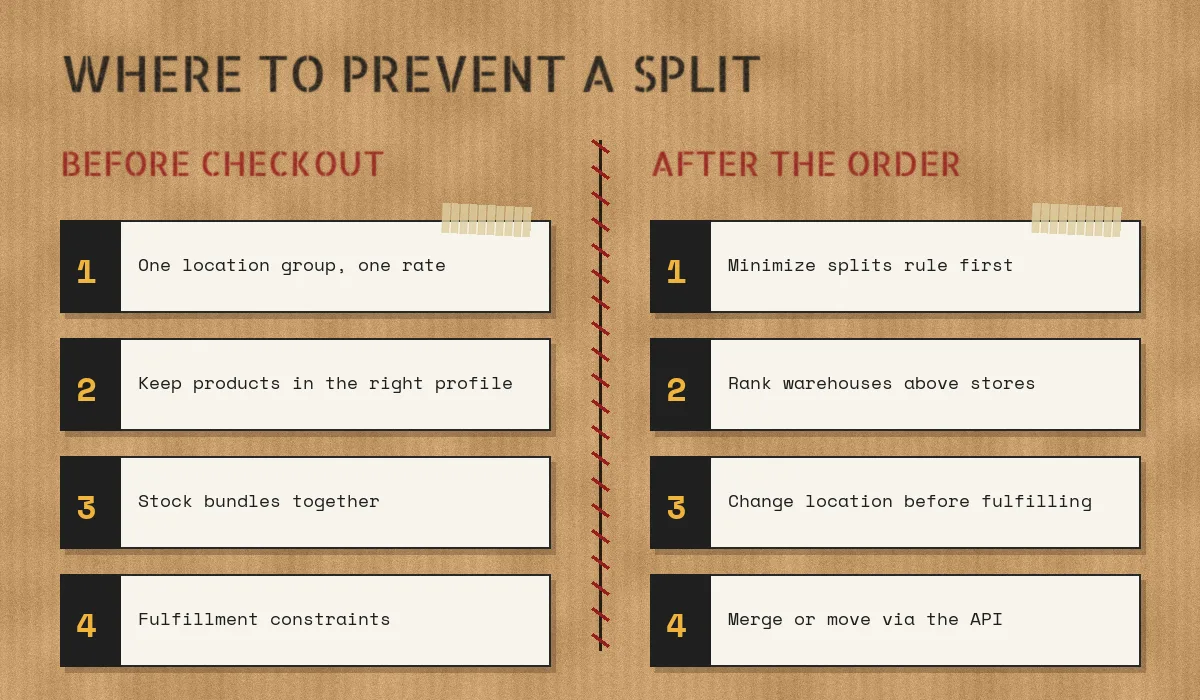
- Keep Minimize split fulfillments at the top of your routing strategy unless you have a specific reason, such as delivery speed, to prefer the closest location. If you do want closest-first, accept that more orders will split and price your rates accordingly.
- Review location groups. Locations that should share one rate belong in the same location group. Splitting them into separate groups is the setting most likely to stack rates for the customer.
- Audit shipping profile assignments. Products that can ship together shouldn't sit in separate profiles by accident. In a catalogue that grows weekly, new products often land in the general profile, or stay in an old one after a vendor or product type change. Shopify itself suggests adjusting profiles when products that could ship together are being split.
- Check every location's online fulfillment setting and shipping zones so routing can actually consider the locations you expect.
- Stock frequently co-purchased items together. If bundles and their add-ons are only ever complete at one warehouse, routing can't do much. Order history is the best guide to which SKUs travel together.
- Check weight-based rate limits so heavy but otherwise normal orders still have a valid rate from a single location.
Enforce "ship together" with fulfillment constraints
Some products must never ship separately: a kit with matching parts, a refrigerated item with its ice packs, or a set sold as a gift. For those, Shopify provides the Fulfillment Constraints Function API. A function can tell checkout that a set of cart lines must ship from the same location, or only from a list of locations.
The function returns operations like this:
{
  "operations": [
    {
      "deliverableLinesMustFulfillFromSameLocationAdd": {
        "deliverableLineIds": [
          "gid://shopify/CartLine/1",
          "gid://shopify/CartLine/2"
        ]
      }
    }
  ]
}
Use this carefully. If no location can satisfy the constraint, the customer sees no shipping options and can't complete checkout. That trade-off is right for a product that genuinely can't be separated, and wrong for a general "please don't split" preference. Contradictory constraints also block rates entirely, so test with real inventory scenarios before you deploy. Building and testing functions like this is part of our custom Shopify app development work.
Fix the assignment after the order
Not every split can be prevented at checkout, but plenty can be avoided before anything is packed:
- Change location. In the order page, staff can change the fulfillment location for unfulfilled items, for example after a transfer has restocked the main warehouse. This doesn't apply to local delivery or pickup orders.
- Move fulfillment orders by API. The fulfillmentOrderMove mutation reassigns unfulfilled line items to another location. It fails if the destination doesn't stock the item, if the fulfillment order is closed, or while a fulfillment service request is pending.
- Merge fulfillment orders. When items end up on separate fulfillment orders at the same location, fulfillmentOrderMerge combines them so they are packed as one.
A simple move request looks like this:
mutation MoveToMainWarehouse {
  fulfillmentOrderMove(
    id: "gid://shopify/FulfillmentOrder/1234567890"
    newLocationId: "gid://shopify/Location/987654321"
  ) {
    movedFulfillmentOrder { id assignedLocation { name } }
    remainingFulfillmentOrder { id }
    userErrors { field message }
  }
}
Both mutations need the fulfillment order write scopes, and the user needs permission to fulfill and ship orders. A common automation pattern is a background job that listens for new orders, checks whether a split assignment could now be consolidated at one location, and moves the items before the pick list is printed.
When splitting an order is the right decision
Zero split shipments is not the goal. Splitting is often the better outcome when:
- Most of the order is in stock and one item is backordered, so shipping the available items now avoids a long wait.
- A product needs special handling, such as hazardous materials or oversized freight, and has to ship from a specialised location or carrier anyway.
- Delivery speed matters more than the extra label, for example when a nearby store can ship most of the order the same day.
- A third-party logistics provider holds some SKUs and your own warehouse holds others, and transferring stock costs more than the second parcel.
The aim is for every split to be a decision you made, not a side effect of a misconfigured profile.
Common mistakes that cause unnecessary splits
- Locations in separate location groups by default. Easy to miss when locations are added over time.
- New products landing in the wrong shipping profile. Product imports and new vendor ranges often bypass whatever manual process you have.
- Retail stores with online fulfillment switched on that hold a handful of units, so routing sends one item from the store and the rest from the warehouse.
- Unverified location addresses, which make the closest-location rule skip a location entirely.
- Testing only single-item carts. Split behaviour only appears with mixed carts, so test combinations across profiles and locations.
Keeping shipping profiles accurate at scale
Profiles are the part of this puzzle that drifts the most, because every new product and every product edit is a chance for an item to land in the wrong one. For stores that assign profiles by tag, vendor, product type, collection, weight, or SKU, CodeSapient's ShipAssign app can automate those assignments with rules, preview changes before they're applied, and flag conflicts. It doesn't change how routing or checkout split orders, but it helps keep products that should ship together in the same profile as your catalogue changes.
For multi-warehouse operations more broadly, our guide on managing multiple warehouses in Shopify covers inventory placement and location strategy.
FAQ
Can I turn off split shipping in Shopify?
Stores that haven't upgraded to shipping options by market can activate or deactivate split shipping in checkout from Settings, then Shipping and delivery. For upgraded stores, Shopify says split shipping is always active and the toggle no longer applies. Turning it off doesn't make items available at one location; it changes how checkout presents the order.
Can customers choose how their order is split?
No. Shopify decides shipment grouping. Customers can choose a different shipping method per shipment through More shipping options, but not which items go together.
Does order routing guarantee an order won't split?
No. The Minimize split fulfillments rule reduces splits but can't prevent them when no single location can complete the order. Only a fulfillment constraints function can require items to ship together, and it does so by blocking checkout when that isn't possible.
Why does my order ship from the wrong location?
Check, in order: whether the location fulfills online orders, whether its address is verified, whether it had stock when the order was placed, whether it belongs to an active shipping zone for the destination, and whether two locations tied, in which case Shopify uses the older one.
Next steps
Start with a quick audit: list your locations and location groups, check which profile your best-selling products belong to, and place a few mixed-cart test orders. Most unnecessary split shipments come from one of those three places.
If you need fulfillment constraints, custom routing logic, or automation that consolidates orders before they're picked, talk to CodeSapient about a custom Shopify solution, or explore our development services. If shipping profile assignments are the bottleneck, you can try ShipAssign on the Shopify App Store.