
Shopify Shipping Options by Market: What Changes and How to Prepare
Shopify is moving shipping from shipping profiles into Markets. Learn how shipping options by market change checkout rate totals, what the automatic upgrade migrates, and what Shopify apps must update.

If you open Settings > Shipping and delivery one day and your shipping profiles have been replaced by a Shipping options section inside Markets, nothing is broken. Your store has been upgraded to Shopify shipping options by market, the new way Shopify organizes shipping. Developers will see the same change described as market-driven shipping.
The change is more than a new screen. It changes where rates are configured, how products are grouped for shipping, and, most importantly, how checkout adds up shipping when a cart matches more than one rate. It also affects any app that reads or edits a merchant's shipping profiles through the Admin API.
This guide explains what changes, what the automatic upgrade does to your existing rates, what to check after the switch, and what Shopify app developers need to update before their merchants move over.
What Shopify shipping options by market are
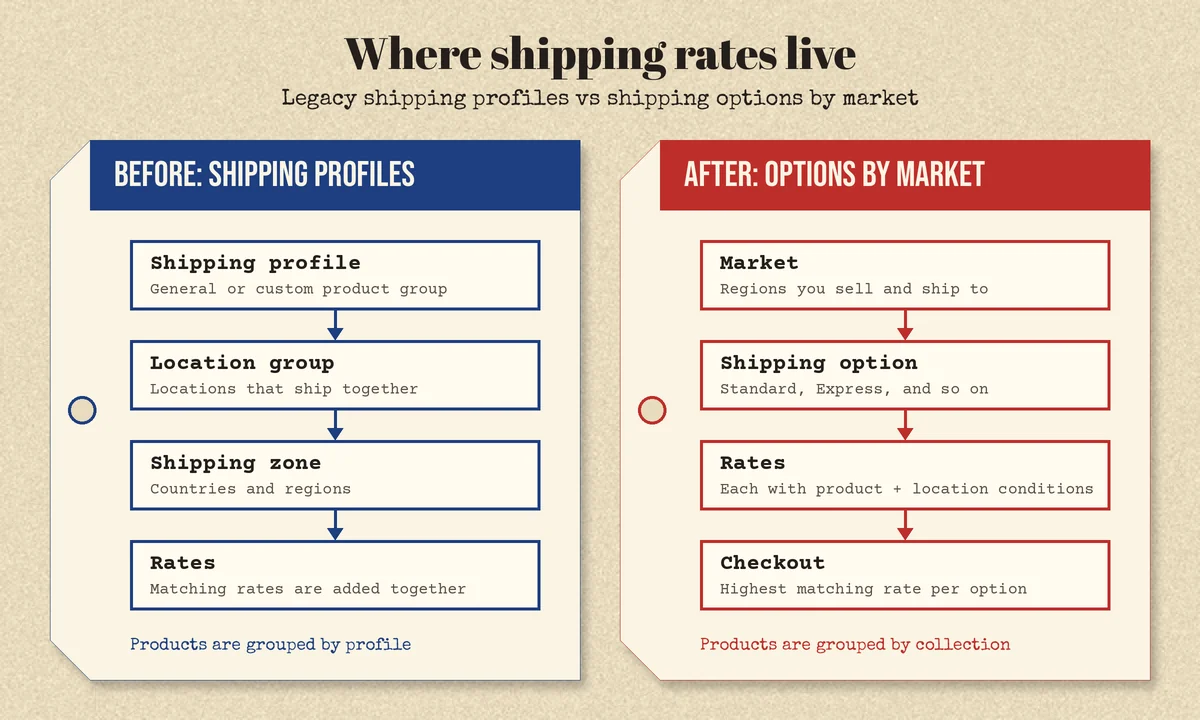
Until now, Shopify shipping has been product-driven. You put products into a shipping profile (the general profile or a custom one), and inside each profile you defined location groups, shipping zones, and rates. If fragile items needed different pricing, you created a separate profile for them.
Shipping options by market flip that hierarchy. According to Shopify's Help Center, shipping now has three levels:
- Markets group the countries and regions you sell and ship to.
- Shipping options are the delivery choices a customer sees at checkout, such as Standard or Express.
- Rates set the price and transit time of an option. One option can contain several rates, and each rate can apply to different products and locations.
Instead of a separate profile for a group of products, each rate carries two kinds of conditions:
- Product conditions decide which products a rate applies to. A rate covers all products in the market or specific collections. Collections can work at the product or variant level, so a rate can cover every variant of a product or only some of them.
- Location conditions, set with the Ships from setting, decide which fulfillment locations the rate applies to, so a rate for items shipped from Canada can differ from the rate for items shipped from the United States.
Markets can also inherit shipping. A child market uses its parent's shipping options by default until you customize it, and if an address falls inside more than one of your markets, the customer sees the shipping options from all of them.
When is this happening?
Shopify's developer upgrade guide gives target dates: merchant rollout begins on October 1, 2026, and all merchants are expected to be on market-driven shipping by July 1, 2027. Shopify notes those dates may shift. The Help Center still labels the feature as early access and says stores are upgraded gradually, so most stores keep using shipping profiles until their own upgrade happens.
You can check which system you're on from Settings > Shipping and delivery. If you see shipping profiles with zones and rates, you're on the current system. If shipping is organized by market in a Shipping options section, your store has been upgraded.
The biggest change: how checkout combines rates
If you only read one section, read this one, because it can change what customers pay.
With shipping profiles, a cart containing products from several profiles gets the rates from each profile combined into one shipping charge. If a shirt profile charges $3 and a pants profile charges $5, a customer who buys both pays $8.
With shipping options by market, the rule is different:
- Within one shipping option, when a cart matches more than one rate, only the highest matching rate is charged.
- Across shipping options, prices are still added together. If one collection only matches Standard and another only matches Express, a cart with both pays for both options.
- Weight-based, carrier-calculated, and app-provided rates are calculated per shipment and added together when an order splits into more than one shipment, just as before.
- Preorder rates aren't combined with rates for items that ship right away, even in the same option. They're added together.
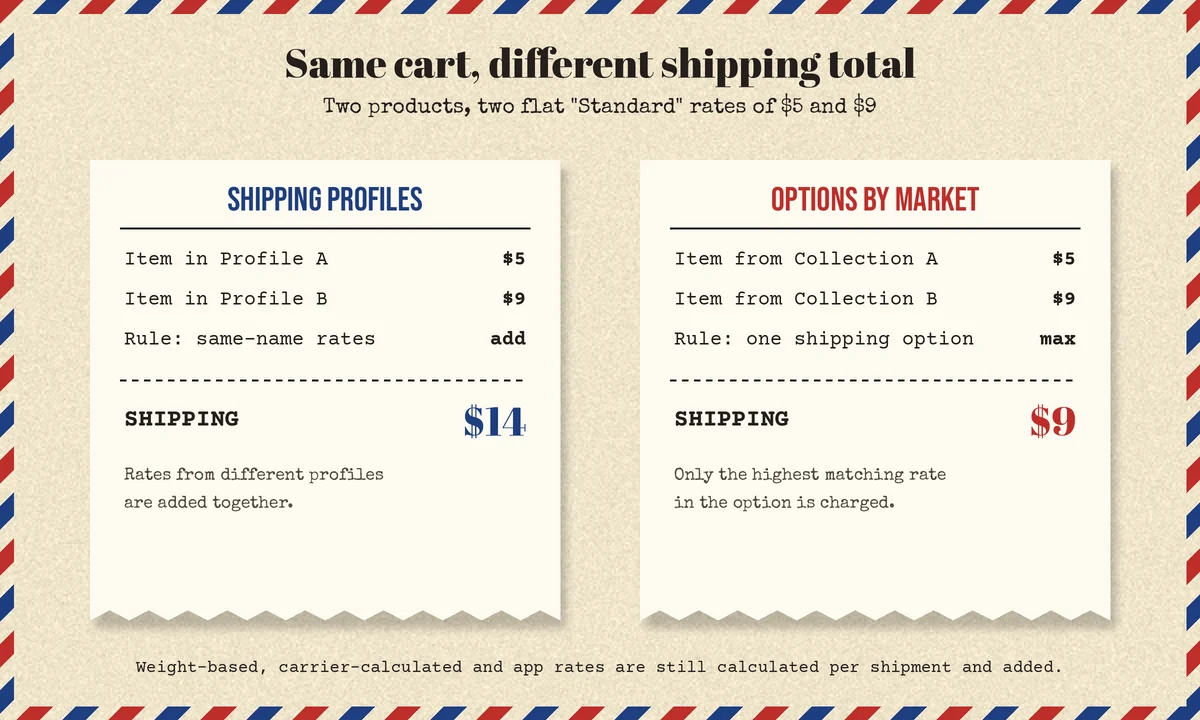
Here is a worked example. Your Standard option has a $5 flat rate for a "Small goods" collection and a $9 flat rate for a "Bulky goods" collection. A cart with one item from each collection is charged $9 for Standard, not $14. Shopify describes this as charging customers more accurately, with less risk of overcharging.
For many stores that is good news. But if your margins quietly depended on stacked shipping charges, for example a surcharge profile for heavy items added on top of a general rate, the upgrade can reduce the shipping you collect on mixed carts. Review those carts before and after the upgrade instead of discovering the difference in your monthly numbers.
Rate types and their limits
Shipping options support four rate types:
- Flat rates: one fixed price for every order that matches the rate's conditions. Set the price to 0 to make it free.
- Order amount rates: a price for each cart-value range, such as full price on small orders and free shipping above a threshold.
- Weight-based rates: a price for each shipment-weight range. Products need accurate weights.
- Carrier- or app-calculated rates: live rates from carriers such as UPS, FedEx, or USPS, or from a shipping app.
Two practical constraints matter when you rebuild or review rates:
- Only flat and order amount options can contain more than one rate. A weight-based or carrier-calculated option has exactly one rate.
- Order amount and weight ranges must cover every possible value. Shopify's setup guide warns that if an order falls outside your ranges, no rate applies and the customer gets a shipping error at checkout. Start your lowest range at 0 and leave the highest range's maximum empty.
What the automatic upgrade does to your setup
Shopify migrates existing shipping for you, and most merchants don't need to rebuild anything. Knowing what the migration does makes it much easier to review the result. Based on Shopify's upgrade documentation:
- Rates with the same name are consolidated. Rates that share a shipping option name become one shipping option, and the highest-matching-rate rule applies inside it.
- Free shipping is consolidated where possible. If a free rate can fit into an option, it reduces that option to zero when it applies. If not, it stays as a separate free option customers can choose.
- Profiles become collections. Product groupings from your profiles become unpublished collections with a
[Shipping]prefix, such as[Shipping] Fragile, and they're attached to the right product conditions. They don't appear on your storefront, but they will show up in your collections list. - Zones may become sub-region markets. To match zones that covered specific states or provinces, the upgrade can create sub-region markets. A zone that mixed regions from more than one country becomes a separate market for each country.
- Split shipping is turned on. It's activated for every upgraded store, even stores that had turned it off, and the on/off setting no longer applies. Checkout tells customers how many shipments to expect.
Split shipments under the new model
Split shipping doesn't change pricing apart from the consolidation rule. Weight-based, carrier, and app rates are still calculated for each shipment and added, so a split order can cost more than the same items shipped together. Flat and order amount rates are charged once per shipping option, and the extra shipments covered by that charge appear as Included at checkout.
To reduce unnecessary splits, Shopify recommends reviewing the Ships from conditions on your rates and your location fulfillment settings. If you run several warehouses, this is a good time to revisit how your multi-location setup in Shopify decides which locations can fulfill which products.
A post-upgrade checklist for merchants
Whether your store was upgraded automatically or you opted in, run through these checks in the first days after the switch:
- Give staff the Markets permission. Shipping is now managed in Markets, and that permission isn't granted automatically or included in existing staff roles. Without it, the people who manage shipping may not be able to see or edit it.
- Compare old and new totals on real carts. Build test carts that mix product groups, especially heavy, fragile, or oversized items that used to have their own profile. Place a test order and confirm the options and prices customers actually see.
- Review the
[Shipping]collections. Confirm that the right products and variants landed in each collection. From now on, a new product only gets a special rate if it ends up in the right collection. - Check range coverage. Make sure every order amount and weight-based option covers all values, so no cart falls into a gap.
- Check app compatibility. Shopify shows a banner on the Shipping and delivery page if an installed app isn't compatible. Rates from an incompatible app might not appear at checkout, which can stop customers from completing their order.
- Know your opt-out window. After an upgrade there's an opt-out window for switching back to shipping profiles. Switching back restores your previous setup and permanently removes any shipping changes made after the upgrade, along with the collections and sub-region markets the upgrade created. Once the window closes, you can't switch back.
Keeping product groups accurate
The upgrade moves the question "which products get which rate?" from profile membership to collection membership. The work itself doesn't go away. Someone, or some automation, still has to make sure a new 40 kg product doesn't quietly inherit a small-parcel rate.
Smart collections with conditions such as product type, tag, or weight can help keep shipping groups current without manual sorting. For stores still on shipping profiles, our own ShipAssign app assigns products and variants to shipping profiles using rules based on tags, vendor, product type, collections, weight, SKU, and variant options, with a preview before changes are applied. Because it works with merchant shipping profiles, it's the kind of app worth checking on that compatibility banner before you opt in early. Shopify says stores that rely on shipping apps may be upgraded later, once those apps are confirmed compatible.
What Shopify app developers need to change
If you build or maintain a Shopify app that touches shipping, this is the part with deadlines. Shopify's changelog introduced market-driven shipping in Admin GraphQL API version 2026-07, and the deliveryProfile and deliveryProfiles surfaces are being deprecated for merchant-owned shipping configuration.
Start by auditing your app's GraphQL operations for deliveryProfile, deliveryProfiles, deliveryProfileCreate, deliveryProfileUpdate, and deliveryProfileRemove. Anything that targets a profile your app didn't create is a merchant-profile interaction. Then find your case:
- Your app only manages its own app-owned delivery profile and never reads merchant profiles. No changes are required. App-owned profiles keep working, and they can now use
coversAllItemsto cover every item in the shop. - Your app reads merchant shipping configuration. If your app is, or can become, a sales channel, Shopify recommends Contextual Product Feeds, which return delivery option estimates per variant from both market rates and app profiles (requires
read_product_listings). Otherwise readMarket.delivery.shippingthrough the Markets API (requiresread_markets). - Your app creates or modifies merchant shipping configuration. Shopify's recommended path is to move to an app-owned delivery profile, which needs no extra scopes and can't be overwritten by merchant edits. If an app profile can't represent your rates, write through
marketCreateandmarketUpdate(requiresread_marketsandwrite_markets).
Branch on the shop's model during the transition
Until July 2027, some of your merchants will be on each model. Read marketDrivenShipping on ShopFeatures and branch: use the Markets API for upgraded shops and deliveryProfiles for legacy shops. Keep that branch isolated in one module so you can delete it cleanly once every shop has moved.
query ShippingModel {
  shop {
    features {
      marketDrivenShipping
    }
  }
}
A few details from the API changelog are easy to miss:
- There are no root queries or standalone mutations for market shipping. You read and write it through
Market,marketCreate, andmarketUpdate. - A
nullvalue forMarket.delivery.shippingmeans the market inherits from its parent. For a market without a parent, that means the shop default of no shipping. - Setting
isEnabledtofalsehides shipping options in that market, including app-managed options. - Merchants can turn your app's rates on or off, but they can't edit their values.
Shipping writes often run in bulk during catalog syncs, so plan for API cost as well as correctness. Our guide to Shopify GraphQL API rate limits covers how to batch that work safely.
Test, then attest
Shopify provides a market-driven shipping feature preview that you select when you create a new development store. It can't be added to an existing store. Run your read and write paths there, then submit Shopify's compatibility self-attestation form. Since October 1, 2026, new installs of an app that isn't marked compatible see a warning, and merchants who opt in manually before you've upgraded will hit breakage. Shopify won't move your existing merchants automatically until your app is confirmed compatible, but that only protects you until your merchants start opting in themselves.
Common mistakes to avoid
- Assuming totals won't change. The highest-matching-rate rule changes mixed-cart pricing by design. Test it.
- Forgetting staff permissions. The Markets permission isn't part of existing roles.
- Deleting the
[Shipping]collections. They look like clutter, but they drive your product conditions. - Making changes during the opt-out window, then switching back. Switching back permanently removes changes made after the upgrade.
- Waiting for July 2027 to update an app. Merchants can opt in now, and new installs already see compatibility warnings.
- Mixing shipping pricing with fulfillment routing. Shipping options decide what the customer pays. Order routing decides which location fulfills the order. Keep them as separate concerns.
FAQ
Do I have to rebuild my shipping rates?
Usually not. Shopify migrates your existing setup during the upgrade, and most merchants don't need to take action. You should still review the result, especially consolidated rates, free shipping, and the collections created for you.
Will customers pay more or less for shipping?
It depends on your setup. Carts that match several flat or order amount rates in the same option are charged the highest matching rate instead of the sum, which can lower totals. Weight-based, carrier, and app rates on split shipments are still added together.
Can I go back to shipping profiles?
Only during the opt-out window after your upgrade. Switching back restores your previous setup and removes changes made since the upgrade. After the window closes, you can't switch back.
How do I give certain products their own shipping rate now?
Group those products in a collection, then add a rate to the shipping option with a product condition for that collection. Collections can target individual variants too.
Does my shipping app still work?
Apps that only manage their own delivery profile keep working. Apps that read or edit merchant profiles need an update. Check the compatibility banner on your Shipping and delivery page, and ask the app developer if you're unsure.
Conclusion
Shopify shipping options by market make shipping easier to reason about: start from the market, define the options customers will see, and use product and location conditions instead of a growing stack of profiles. For merchants, the important work is checking mixed-cart totals, staff permissions, and the collections that now decide who gets which rate. For app developers, it's an API migration with a hard end date, and the sooner it's tested on a preview store, the fewer surprises your merchants will see.
If your store has complex shipping rules, multiple warehouses, or a custom app that writes shipping configuration, CodeSapient can help you audit the setup and upgrade your integration for market-driven shipping. Explore our Shopify and custom software development services, read about custom Shopify app development with Shopify Functions, or contact our team to talk through your migration.