
Shopify Core Web Vitals: How to Fix LCP, INP, and CLS on Your Store
A practical guide to Shopify Core Web Vitals: where to find your store's real LCP, INP, and CLS numbers, and the theme, image, and app script changes that actually improve them.
A Shopify store can look fine on your office Wi-Fi and still feel slow to the people who actually buy from it: the hero image arrives late on a mid-range phone, the page jumps when a reviews widget loads, and the Add to cart button takes a beat too long to react. Core Web Vitals are how Google and Shopify measure those three problems from real visits, and they are fixable once you know which part of the store causes each one.
This guide explains what Shopify Core Web Vitals measure, where to find your store's real numbers, and the specific theme and app changes that move LCP, INP, and CLS. It is written for merchants who want to understand the trade-offs and for developers who have to make the changes.
What Core Web Vitals measure on a Shopify store
There are three metrics, and each one maps to a question a shopper is silently asking.
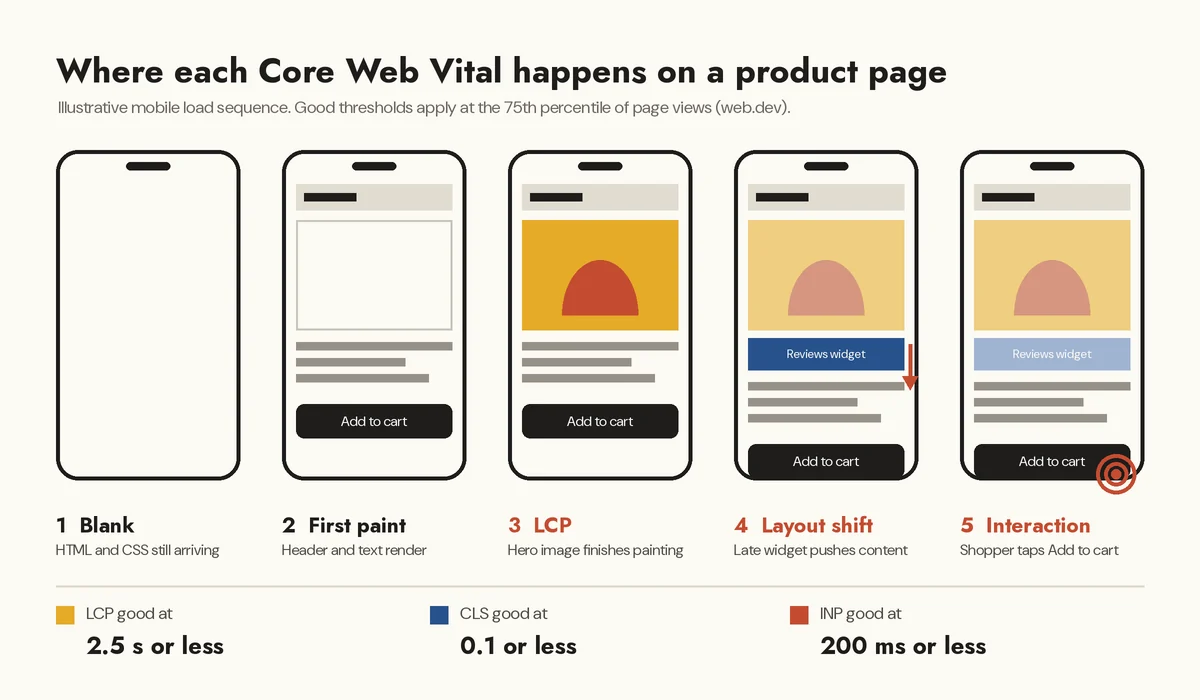
- Largest Contentful Paint (LCP): "Has the main thing loaded yet?" It records when the largest element in the first viewport finishes rendering. On most Shopify pages that is the hero banner on the home page or the main product image on a product page. Good is 2.5 seconds or less.
- Interaction to Next Paint (INP): "Did my tap do anything?" It observes clicks, taps, and key presses during the whole visit and reports one of the slowest, measured from the interaction until the browser can paint the next frame. Good is 200 milliseconds or less.
- Cumulative Layout Shift (CLS): "Why did the page just move?" It scores how much visible content shifts unexpectedly. Good is 0.1 or less.
The thresholds are assessed at the 75th percentile of page views, split by mobile and desktop, as described in Google's Web Vitals guidance. In plain terms, at least three out of four visits need to hit the target, so a fast experience for you on a new laptop does not count for much if most of your traffic arrives on phones.
INP replaced First Input Delay as a Core Web Vital in March 2024. That change matters for Shopify stores because INP looks at every interaction, not just the first one, so heavy JavaScript in variant pickers, cart drawers, and filters now shows up in the score.
Do Core Web Vitals affect Shopify SEO?
They are part of the picture, not a shortcut to rankings. Google's Search Central documentation on Core Web Vitals recommends achieving good scores for success with Search and says they align with what its core ranking systems seek to reward, alongside other page experience signals. Relevant, helpful content still matters more. The stronger reason to care is commercial: a page that loads and responds quickly is easier to buy from.
Find your real numbers before changing anything
Field data, collected from real visitors, tells you whether you have a problem. Lab data, from a single simulated test, helps you find the cause. Mixing them up is the most common reason performance work goes in circles.
Shopify's web performance reports
Shopify admin includes web performance reports built on real user data. A summary on the Online Store themes page shows LCP, INP, and CLS at the 75th percentile with a Good, Moderate, or Poor ranking, and the full reports in Analytics break the numbers down over time, by page URL, by page type, and by device. The over-time charts also mark events such as app installs and theme updates, which makes it much easier to connect a regression to a specific change.
A few details are worth knowing. Shopify notes that the data can be delayed by up to 36 hours and covers the last 90 days, you need the Reports staff permission to view it, and a store in private mode or with very little traffic may not have metrics yet.
PageSpeed Insights and Search Console
PageSpeed Insights shows two things on one screen: field data from the Chrome UX Report when Google has enough traffic for the URL or origin, and a Lighthouse lab test underneath. Search Console's Core Web Vitals report groups similar URLs, which is useful for spotting that all product pages share one problem.
Why the Lighthouse score is not the goal
Lighthouse loads a page once, in a simulated environment, and nobody taps anything. It cannot measure INP directly, so it reports Total Blocking Time as a lab hint about main-thread congestion instead. A store can have a mediocre Lighthouse score and pass Core Web Vitals in the field, or the reverse. Use Lighthouse and the Chrome DevTools Performance panel to reproduce and diagnose; judge success by the field numbers.
Fixing LCP on Shopify: get the main image painted sooner
LCP is usually the first metric to fix because it is the most visible. Shopify's own performance best practices for themes list the patterns that matter most, and nearly all of them are about the hero or product image.
Never lazy-load the LCP image
Lazy loading is excellent for images further down the page and harmful for the one image the shopper is waiting for. When the browser sees loading="lazy" on the hero, it waits until layout is known before fetching it. Mark the LCP candidate as eager and give it a high fetch priority instead.
{%- liquid
  assign hero_loading = 'lazy'
  assign hero_priority = 'auto'
  if section.index == 1
    assign hero_loading = 'eager'
    assign hero_priority = 'high'
  endif
-%}

{{ section.settings.image
  | image_url: width: 2400
  | image_tag:
    widths: '600, 900, 1200, 1800, 2400',
    sizes: '100vw',
    loading: hero_loading,
    fetchpriority: hero_priority,
    alt: section.settings.image.alt }}
Using section.index means the same section can be the first thing on the home page and a lower banner on a landing page without being eager-loaded in both places. The image_tag filter also generates the srcset and adds width and height attributes for you, which helps both LCP and CLS.
Use a real image element, not a CSS background
Many custom hero sections set the banner with background-image in CSS. The browser's preload scanner cannot discover that image until the stylesheet has been downloaded and applied, so it starts late. An <img> tag, or a <picture> element when you have separate mobile and desktop artwork, is found as soon as the HTML arrives.
Remove what delays the paint
- Fade-in and slide-up animations on the hero. The image may be downloaded, but LCP is not recorded until it is actually visible.
- Slideshows whose first slide is built by JavaScript. If the carousel script has to run before the first slide appears, LCP waits for that script.
- Pop-ups and consent dialogs that load immediately. A large dialog can become the LCP element itself. Shopify's guidance is to keep dialogs smaller than the main content or delay them until after interaction.
- A/B testing anti-flicker snippets left running. These hide the page until the testing script decides what to show. Remove them when no test is live.
Watch the server side too
If the HTML itself arrives slowly, no image trick will save LCP. On Shopify, most of that time is Liquid rendering. Nested loops over products and variants, metafield lookups inside loops, and iterating every variant on a collection grid are the usual causes, and they get slower as the catalog grows. The Shopify Theme Inspector for Chrome shows which Liquid lines take the longest, so you can fix the expensive ones rather than guessing.
Fixing INP on Shopify: make taps feel instant
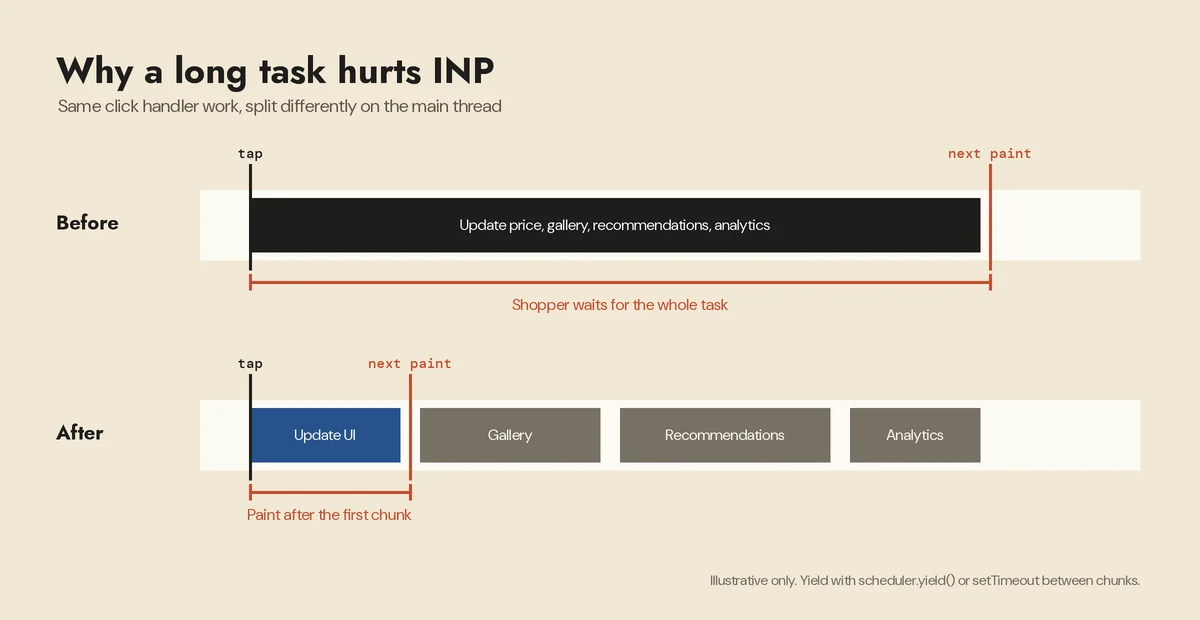
INP is where many Shopify stores now struggle, because it exposes JavaScript that runs while the shopper is trying to do something. Every installed app that adds storefront scripts, every tracking pixel, and the theme's own code share one main thread. When a tap lands while that thread is busy, the browser cannot respond until the current task finishes.
Audit apps and scripts first
Before rewriting any code, list every script the storefront loads and ask whether each one still earns its cost. Typical findings include apps that are no longer used but still have an app embed switched on in the theme editor, duplicate analytics tags added by different people, chat widgets loading on every page when they are only needed on a few, and leftover snippets from apps that edited theme files directly before they were uninstalled. Removing a script you do not need is the cheapest INP improvement there is.
Do the urgent work first, then yield
A variant change on a product page often updates the price, the buy button, the gallery, the URL, recommendations, and analytics in a single handler. The shopper only needs the first two to see that the tap worked. Update those, give the browser a chance to paint, then do the rest.
function yieldToMain() {
  if (globalThis.scheduler?.yield) return scheduler.yield();
  return new Promise((resolve) => setTimeout(resolve, 0));
}

variantPicker.addEventListener('change', async (event) => {
  const variant = findVariant(event.target.form);

  // Visible feedback first
  updatePrice(variant);
  updateBuyButton(variant);

  await yieldToMain();

  // Work the shopper is not waiting for
  updateGallery(variant);
  updateUrl(variant);
  await yieldToMain();
  loadRecommendations(variant);
  trackVariantView(variant);
});
scheduler.yield() is not available in every browser, which is why the fallback uses setTimeout. The web.dev guides to optimizing INP and breaking up long tasks explain the approach in more depth.
Load code when it is needed
Size guides, quick-view modals, store locators, and complex filter panels do not need their JavaScript on page load. Load the module the first time the shopper opens the feature.
<button type="button" data-size-guide data-module="{{ 'size-guide.js' | asset_url }}">
  Size guide
</button>

<script type="module">
  const button = document.querySelector('[data-size-guide]');
  button?.addEventListener('click', async () => {
    const { openSizeGuide } = await import(button.dataset.module);
    openSizeGuide();
  }, { once: true });
</script>
The same idea applies to markup. Cart drawers, mega menus, and filter dialogs can add thousands of DOM nodes even while closed, and a large DOM makes every style recalculation slower. Building that content when it is first opened, for example through the Section Rendering API, keeps the initial page lighter.
Other INP habits that add up
- Use
deferon theme scripts that are not needed to render the first view, andasynconly for independent third-party scripts. - Debounce input handlers such as predictive search so each keystroke does not trigger a full re-render.
- Animate with
transformandopacityrather than properties liketop,left, orheight, which force layout on every frame. - Keep one responsive menu instead of separate desktop and mobile menus that double the markup.
Fixing CLS on Shopify: stop the page from jumping
Layout shift is the easiest metric to see and often the easiest to fix, because the cause is usually something arriving without reserved space.
Give every image its dimensions
An image without width and height takes up no space until it loads, then pushes everything below it down. Shopify's image_tag filter adds these attributes automatically, so the fix in older or custom themes is often to replace hand-built <img> tags that use manually constructed CDN URLs.
Reserve space for app content
Review stars, trust badges, delivery estimates, and upsell blocks frequently load after the page and insert themselves above product details. If the app provides an app block through theme app extensions, place the block where you want it and give its container a minimum height that matches what it usually renders.
.product__reviews-summary {
  min-height: 28px;
}

.product__delivery-estimate {
  min-height: 48px;
}
Announcement bars and cookie banners inserted at the top of the page are a common culprit for the same reason. Render them in Liquid with their final height, or overlay them instead of pushing content down.
Tame font swapping
When a web font replaces the fallback font, text can reflow if the two have different metrics. Shopify's guidance suggests using size-adjust and the font metric override descriptors on the fallback so it occupies roughly the same space, or using system fonts where the brand allows it. Self-hosting fonts on the Shopify CDN instead of a third-party font service also removes an extra connection before text can render.
A practical order of work
Performance projects stall when they start with a long list of everything that could be better. A tighter loop works better:
- Pick the metric and page type that fail. Use Shopify's reports by page type and device. Mobile product pages are a common starting point because they combine large images, apps, and interactive variant pickers.
- Reproduce it. Throttle the CPU and network in Chrome DevTools, record a Performance trace, and identify the LCP element, the shifting elements, or the long tasks behind a slow interaction.
- Fix the biggest single cause. Often that is one app, one hero section, or one handler.
- Ship on a duplicate theme first. Preview it, check that apps still work, then publish.
- Verify in the field. Watch Shopify's over-time report for the change, keeping in mind the reporting delay and the fact that the 75th percentile moves gradually as new visits replace old ones.
Common mistakes and limitations
- Chasing a perfect Lighthouse score. A lab score of 100 is not the goal; passing field thresholds for real shoppers is.
- Lazy-loading everything. It feels like an optimization but delays the most important image on the page.
- Adding another app to fix app bloat. Some "speed" apps add their own scripts. Check what any optimization app actually changes before installing it, and measure the result.
- Testing only the home page. Product and collection pages carry most of the revenue and most of the JavaScript.
- Ignoring catalog growth. Liquid that is fast with 50 products can be slow with 5,000 if it loops over variants or metafields.
- Expecting headless to fix it automatically. A headless storefront built with Hydrogen can perform very well, but it moves the performance work to your own code and hosting rather than removing it.
When to bring in a Shopify developer
Many fixes in this guide, such as switching off unused app embeds, removing old tracking tags, and delaying pop-ups, can be handled from the admin and theme editor. Others need code: restructuring a custom hero section, rewriting a variant picker that does too much on each change, fixing Liquid that slows down server rendering, or replacing a storefront feature that currently depends on a heavy third-party script with a lighter custom Shopify app built on theme app extensions and Shopify Functions. If your store also pulls data from other systems in the browser, moving that work server-side often helps, and our guide to Shopify GraphQL API rate limits covers how to do that without running into throttling.
FAQ
What is a good Core Web Vitals score for Shopify?
The same as for any site: LCP of 2.5 seconds or less, INP of 200 milliseconds or less, and CLS of 0.1 or less, each at the 75th percentile of visits. Shopify's web performance summary labels each metric Good, Moderate, or Poor against these thresholds.
Why does PageSpeed Insights disagree with Shopify's report?
They often measure different things. The top of PageSpeed Insights shows Chrome UX Report field data, the bottom shows a single Lighthouse lab run, and Shopify's report uses its own real user data over the date range you choose. Differences in time window, traffic mix, and lab conditions are normal. Trust field data for the verdict and lab tools for diagnosis.
How long until improvements show up?
Shopify notes its report can lag by up to 36 hours, and percentile-based numbers shift gradually as new visits accumulate. Google's Chrome UX Report data in PageSpeed Insights is based on a rolling 28-day window, so it takes longer to reflect a change fully.
Does my Shopify theme matter more than apps?
Both matter, and they affect different metrics. Theme structure has the biggest influence on LCP and server rendering time, while app and tracking scripts are a frequent cause of poor INP and of layout shifts from injected content. An audit should look at both together.
Make your store fast where it counts
Shopify Core Web Vitals come down to three habits: get the main image painted early, keep the main thread free for the shopper's taps, and reserve space for everything that loads late. Measure with real-user data, fix the biggest cause on the pages that earn the most, and verify the result before moving on.
If your store needs deeper theme work, a lighter replacement for a heavy app, or a performance audit of custom code, CodeSapient builds and optimizes Shopify storefronts and apps. See our development services or contact our team to talk through what is slowing your store down.