
React View Transitions: A Practical Guide to ViewTransition in React 19.3
React 19.3 made the ViewTransition component stable. Learn when React View Transitions activate, enter/exit/update/share, addTransitionType, shared elements, Suspense, reduced motion and browser support.
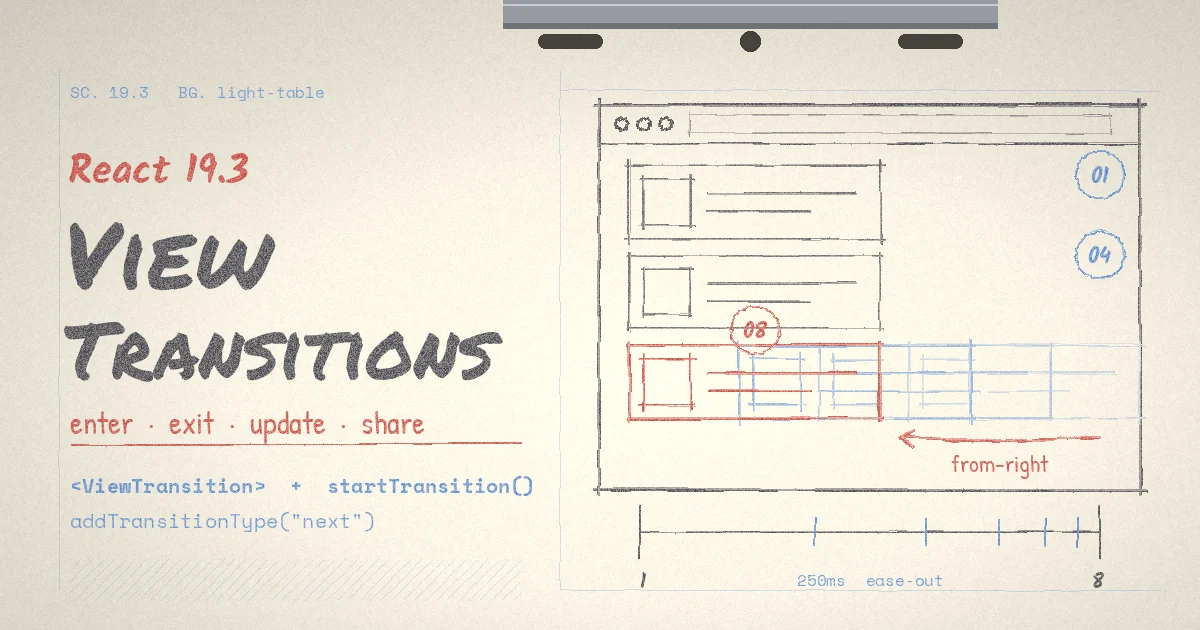
A user clicks a filter and the product grid snaps to a new layout. They open a details panel and it appears with a hard cut. They tap "next" in a carousel and the slide just swaps. Nothing is broken, but the interface gives no hint about what moved where, and teams usually respond by adding an animation library, wrapping half the tree in motion components, and then fighting state timing whenever data loads asynchronously.
React 19.3, released on September 9, 2026, makes a different approach stable. The <ViewTransition> component lets React drive the browser's own View Transition API, so animations follow React's rendering model instead of competing with it. A patch release, 19.3.1, followed on October 14, 2026 with React Server Components transport fixes. This guide explains how React View Transitions work, the rules that decide whether anything animates at all, how to customise and direct the animations, and how to roll them out without hurting accessibility or older browsers.
What React View Transitions actually do
The browser's document.startViewTransition() takes a snapshot of the page, lets you mutate the DOM, takes a second snapshot, and animates between the two using CSS pseudo-elements such as ::view-transition-old and ::view-transition-new. Elements that carry a view-transition-name get their own snapshot pair, so they can move and resize independently of the rest of the page.
Calling that API by hand in a React app is awkward. React decides when the DOM changes, batches updates, and may suspend while data loads. <ViewTransition> removes the mismatch. According to the React docs, React applies view-transition-name to the nearest DOM node inside each boundary only at the moment that boundary should take part in an animation, calls startViewTransition itself, applies its DOM mutations inside the update callback, waits for fonts, runs layout effects, and then measures which boundaries changed.
A few consequences are worth knowing before you write any code:
- Do not call
startViewTransitionyourself. React says it will interrupt a view transition started elsewhere on the page, so let React coordinate them. - The animation is a snapshot, not a live layout animation. A boundary is captured as an image that can move, scale and cross-fade. Children inside it do not animate individually unless you give them their own boundaries.
- It only works in the DOM for now. React Native and other renderers are not supported yet.
- Updates queue rather than stack. If several updates arrive while one animation runs, React batches them and animates from the current state to the latest one when the first finishes.
The rule that decides whether anything animates
The most common question with React View Transitions is "why does nothing happen?" The answer is almost always that the update was not a Transition. A plain setState is treated as urgent and is applied immediately. Only updates inside startTransition, a <Suspense> reveal, or an update coming from useDeferredValue activate a <ViewTransition>.
import { ViewTransition, startTransition, useState } from 'react';

export function DetailsToggle({ product }) {
  const [open, setOpen] = useState(false);

  return (
    <>
      <button onClick={() => startTransition(() => setOpen(o => !o))}>
        {open ? 'Hide details' : 'Show details'}
      </button>

      {open && (
        <ViewTransition>
          <ProductDetails product={product} />
        </ViewTransition>
      )}
    </>
  );
}
With no extra CSS, this cross-fades the details panel in and out, which is the browser's default view transition. Remove startTransition and the panel appears instantly. That is by design: typing into an input or toggling a checkbox should feel immediate, while navigations, filter changes and reveals are good candidates for animation.
Enter, exit, update and share
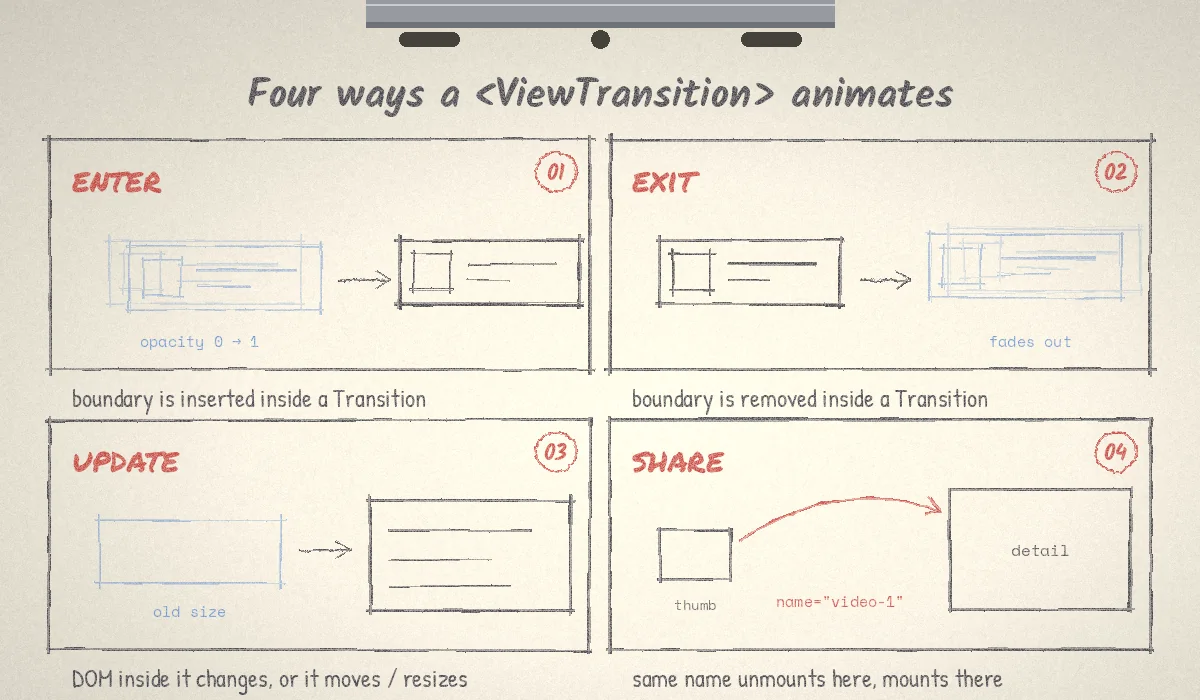
React chooses the animation from the shape of the change:
- enter: the boundary is inserted during the Transition.
- exit: the boundary is removed during the Transition.
- update: React mutates the DOM inside the boundary, or the boundary itself changes size or position because of an immediate sibling. With nested boundaries, the innermost one that contains the mutation animates.
- share: a named boundary is removed in one place and a boundary with the same name is inserted elsewhere in the same Transition. This is the shared element transition, for example a thumbnail growing into a detail view.
Placement matters more than props
Enter and exit only fire when <ViewTransition> is the first thing rendered in the inserted or removed subtree, before any DOM node. If a component wraps the boundary in a <div>, the enter and exit animations never trigger:
// Does not animate on enter/exit: a DOM node sits above the boundary
function Item({ video }) {
  return (
    <div className="item">
      <ViewTransition>
        <Video video={video} />
      </ViewTransition>
    </div>
  );
}

// Animates: the boundary comes first
function Item({ video }) {
  return (
    <ViewTransition>
      <div className="item">
        <Video video={video} />
      </div>
    </ViewTransition>
  );
}
React documents this as a deliberate constraint that prevents too much or too little from animating. In practice, put the boundary at the top of the component that represents the thing appearing or disappearing.
Customising animations with View Transition Classes
Each trigger has a matching prop: enter, exit, update, share and default. Each accepts "auto" (browser default cross-fade), "none" (no animation), or a class name of your own. React applies that class as a view transition class when the boundary activates, and you target it with the view transition pseudo-elements:
<ViewTransition default="none" enter="slide-up" exit="fade-out">
  <Toast message={message} />
</ViewTransition>
::view-transition-new(.slide-up) {
animation: 220ms cubic-bezier(0.22, 1, 0.36, 1) both slide-up;
}
::view-transition-old(.fade-out) {
animation: 150ms ease-in both fade-out;
}
@keyframes slide-up {
from { transform: translateY(16px); opacity: 0; }
}
@keyframes fade-out {
to { opacity: 0; }
}Two details save a lot of debugging. First, default="none" turns off every trigger that you do not list explicitly, which is the safest way to opt a large component into only the animation you want. Second, the React team recommends styling through these classes rather than writing selectors against view-transition-name, because React generates unique names automatically and only applies them during an animation.
Opting part of a tree out
When you wrap something large, such as a whole page, every update inside it becomes a candidate for a cross-fade. To animate only a theme change while leaving content updates alone, nest a boundary with update="none" around the children:
<ViewTransition>
  <div className={theme}>
    <ViewTransition update="none">{children}</ViewTransition>
  </div>
</ViewTransition>
For imperative control, the onEnter, onExit, onUpdate and onShare props give you the pseudo-elements so you can call the Web Animations API. Each callback should return a cleanup function, typically () => anim.cancel(), so an interrupted transition does not leave animations running.
Direction-aware animations with addTransitionType
The same state change can deserve different motion. Moving a carousel forward to slide three should slide left; moving back to slide three should slide right. addTransitionType lets you tag a Transition with its cause, and the class props accept an object keyed by type:
import { ViewTransition, startTransition, addTransitionType } from 'react';

function next() {
  startTransition(() => {
    addTransitionType('next');
    setIndex(i => i + 1);
  });
}

function previous() {
  startTransition(() => {
    addTransitionType('previous');
    setIndex(i => i - 1);
  });
}

<ViewTransition
  key={slide.id}
  enter={{ next: 'from-right', previous: 'from-left', default: 'auto' }}
  exit={{ next: 'to-left', previous: 'to-right', default: 'auto' }}
>
  <Slide slide={slide} />
</ViewTransition>
The key is what makes this an enter and exit: changing it unmounts the old slide and mounts a new one inside the same Transition. React also passes the types to the browser, so you can scope CSS with :active-view-transition-type(next). The same pattern works for routers, for example addTransitionType('navigation-back') on back navigations.
Shared element transitions without surprises
A shared element transition needs a name, and this is the one place you should set one. The name must be unique across everything mounted in the app at that moment. Giving every list item name="item" makes React log a "two <ViewTransition name=...> components with the same name" error in development and causes the transition to fail. Namespace the name with an ID instead:
function VideoThumb({ video }) {
  return (
    <ViewTransition name={`video-${video.id}`}>
      <img src={video.thumb} alt={video.title} />
    </ViewTransition>
  );
}

function VideoHero({ video }) {
  return (
    <ViewTransition name={`video-${video.id}`}>
      <img src={video.cover} alt={video.title} />
    </ViewTransition>
  );
}
Two documented limits explain most "it worked yesterday" reports. If either side of the pair is outside the viewport, React does not form a pair and treats each side as a plain enter or exit, so nothing flies across the screen during scroll. And if the Transition unmounts one side and then shows a Suspense fallback before the other side mounts, no shared transition happens. Preloading the detail data, or rendering it inside the same Transition, keeps the pair intact.
Lists and reordering
To animate a reorder, give each item a stable key and make the boundary the item's outermost element. React then runs an update animation on each item as it moves. Wrapping each item in an extra <div> breaks this, and the parent boundary just cross-fades. Do not use names to animate reorders: shared transitions skip items that move outside the viewport, which is exactly when a reorder needs to show where something went.
Suspense, data loading and images
View Transitions are tightly integrated with Suspense, which matters if your app streams data from the server (our guide to Next.js Cache Components covers that model on the framework side). Like any Transition, React waits for data and new stylesheets before animating, and <ViewTransition> also waits up to 500 ms for new fonts and visible images so they do not pop in after the animation starts.
Where you put the boundary changes the effect:
// Update: fallback and content share one boundary, so they cross-fade
<ViewTransition update="auto" default="none">
  <Suspense fallback={<CardSkeleton />}>
    <Card />
  </Suspense>
</ViewTransition>

// Exit + enter: separate boundaries, so the fallback exits and content enters
<Suspense fallback={<ViewTransition><CardSkeleton /></ViewTransition>}>
  <ViewTransition><Card /></ViewTransition>
</Suspense>
The React team's guidance is that fallbacks should appear immediately without animation, the move from fallback to final content should animate, and content that did not suspend should appear immediately. update="auto" default="none" encodes exactly that, and it stops already-cached content from fading in every time it is shown.
If you need to keep component state while animating something in and out, such as a sidebar with a scroll position or a form, wrap it in <Activity>. A boundary inside an Activity runs enter when it becomes visible and exit when it is hidden, without unmounting.
Accessibility, browser support and routers
Respect reduced motion yourself
React does not disable animations for users who ask for less motion. The docs say this plainly, and our lab below confirms React still starts a view transition when prefers-reduced-motion: reduce is set. Add a global rule using the prefers-reduced-motion media query so the DOM still updates but the motion goes away:
@media (prefers-reduced-motion: reduce) {
  ::view-transition-group(*),
  ::view-transition-old(*),
  ::view-transition-new(*) {
    animation: none !important;
  }
}
Browser support and fallbacks
Same-document view transitions became Baseline Newly available in October 2025, when Firefox 144 joined Chrome, Edge and Safari. Firefox's first implementation did not include view transition types, so treat :active-view-transition-type() styling as an enhancement. In browsers without document.startViewTransition, the update is still applied, just without animation. That makes React View Transitions a safe progressive enhancement: design every screen so the instant version is acceptable.
Routers, back buttons and flushSync
React waits for a pending navigation to finish so scroll restoration happens inside the animation. Two edge cases catch router authors. Transitions started from the legacy popstate event must finish synchronously, so React skips animations there, which means the back button does not animate unless the router uses the Navigation API. And if a flushSync lands in the middle of the sequence, React skips the view transition entirely. If animations disappear only on some navigations, look for one of those two.
Keep durations short. A 200 to 300 ms transition is plenty for most UI changes, and long animations can make an interface feel slow even when it renders quickly. React defers useEffect until the animation finishes, unless another update forces them to run earlier, so a slow animation can also delay effect-driven work. If you are already tracking responsiveness, our Core Web Vitals guide to LCP, INP and CLS explains how to measure interaction latency before and after a change like this.
What we saw in a small local lab
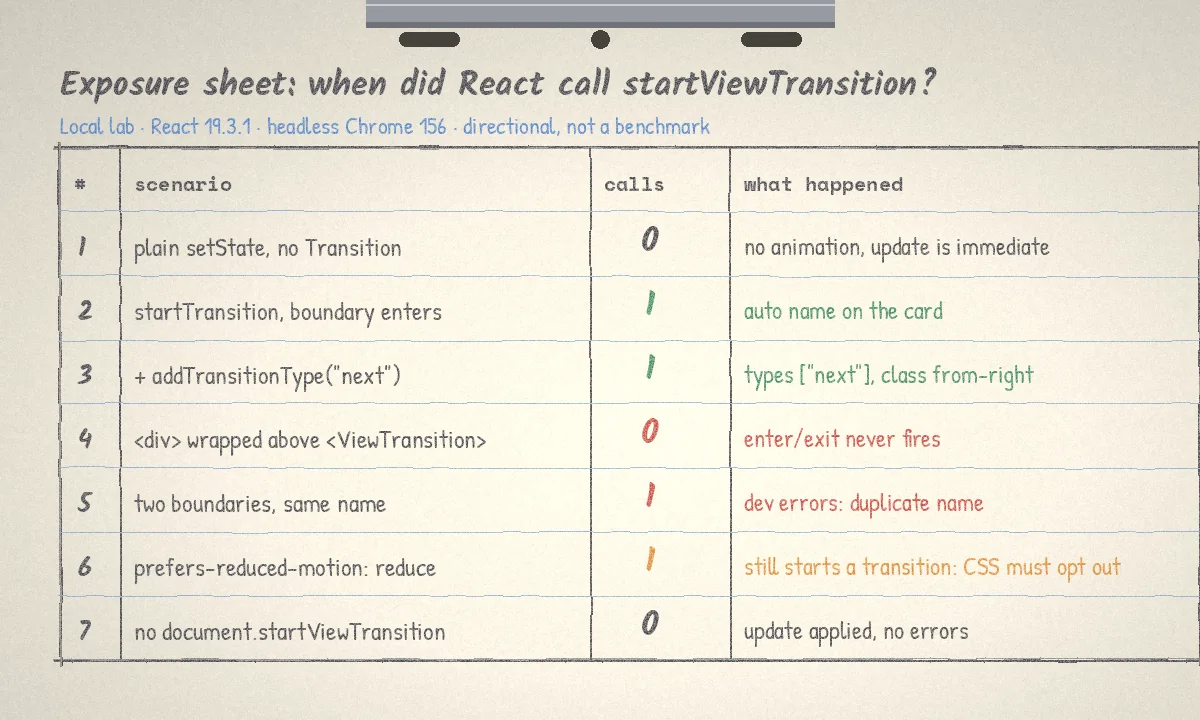
To check the rules above against the released package, we built a small page with React 19.3.1 and react-dom 19.3.1, bundled it with esbuild, and ran it in headless Chrome 156 through Puppeteer. We wrapped document.startViewTransition to count calls and record which elements carried a view-transition-name during each update. On that page:
- A plain
setStaterendered the card with zero view transition calls. Wrapping the same update instartTransitionproduced one call, and the card received an automatically generated name. - Adding
addTransitionType('next')passed["next"]to the browser and applied thefrom-rightclass we mapped to that type. - Putting a
<div>above the boundary meant React never started a view transition for the enter. - Two boundaries with the same name logged the duplicate-name errors in development.
- With reduced motion emulated, React still started the transition, which is why the CSS rule above is needed.
- With
startViewTransitionremoved from the page, the update applied normally and no errors were logged.
This is a small, local test of documented behaviour in one browser. It says nothing about animation smoothness on real devices, so profile your own screens on the hardware your users have.
A rollout checklist for React View Transitions
- Upgrade to React 19.3.1 or later and confirm your framework or router supports it.
- Pick two or three interactions where motion explains a change: opening details, filtering a list, moving between steps. Leave typing and toggles instant.
- Wrap the update in
startTransition, then place<ViewTransition>at the top of the component that appears, disappears or moves. - Start with
default="none"and opt into the specific trigger you want, using classes rather than name selectors. - Use names only for shared elements, always namespaced with an ID.
- Add the reduced-motion rule globally before shipping any animation.
- Check the no-support path in an older browser, and test back navigation if your router still relies on
popstate. - Measure responsiveness before and after, and keep durations short.
For the full API, see the React 19.3 release post and the <ViewTransition> reference linked above, which includes interactive examples of every pattern in this guide.
CodeSapient builds and maintains React, Next.js and SaaS front ends, including upgrades like this one where motion has to fit an existing design system, data-loading model and accessibility requirements. If you would like a second pair of eyes on a React 19.3 upgrade or a plan for adding view transitions to your product, take a look at our services or get in touch.